
The chart you click is still the terminal
A MetaTrader plugin replay is stuck when the session only exists on that terminal's chart.
Direct answer
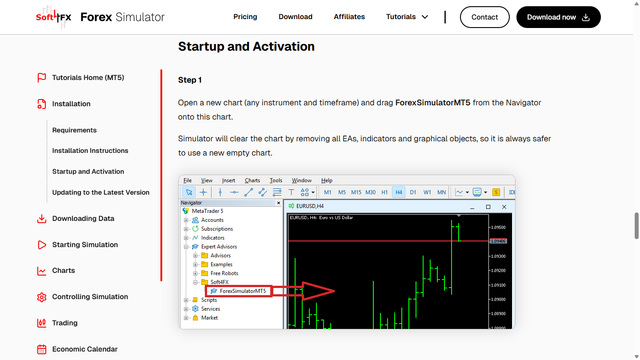
Soft4FX replay, on the MT5 pages opened 2026-09-21, starts by dragging ForexSimulatorMT5 from the Navigator onto a MetaTrader chart. The next sentence on that page says the simulator will clear the chart by removing all EAs, indicators and graphical objects. The session is not a separate window you installed beside the terminal. It is an Expert Advisor living on the terminal's chart.
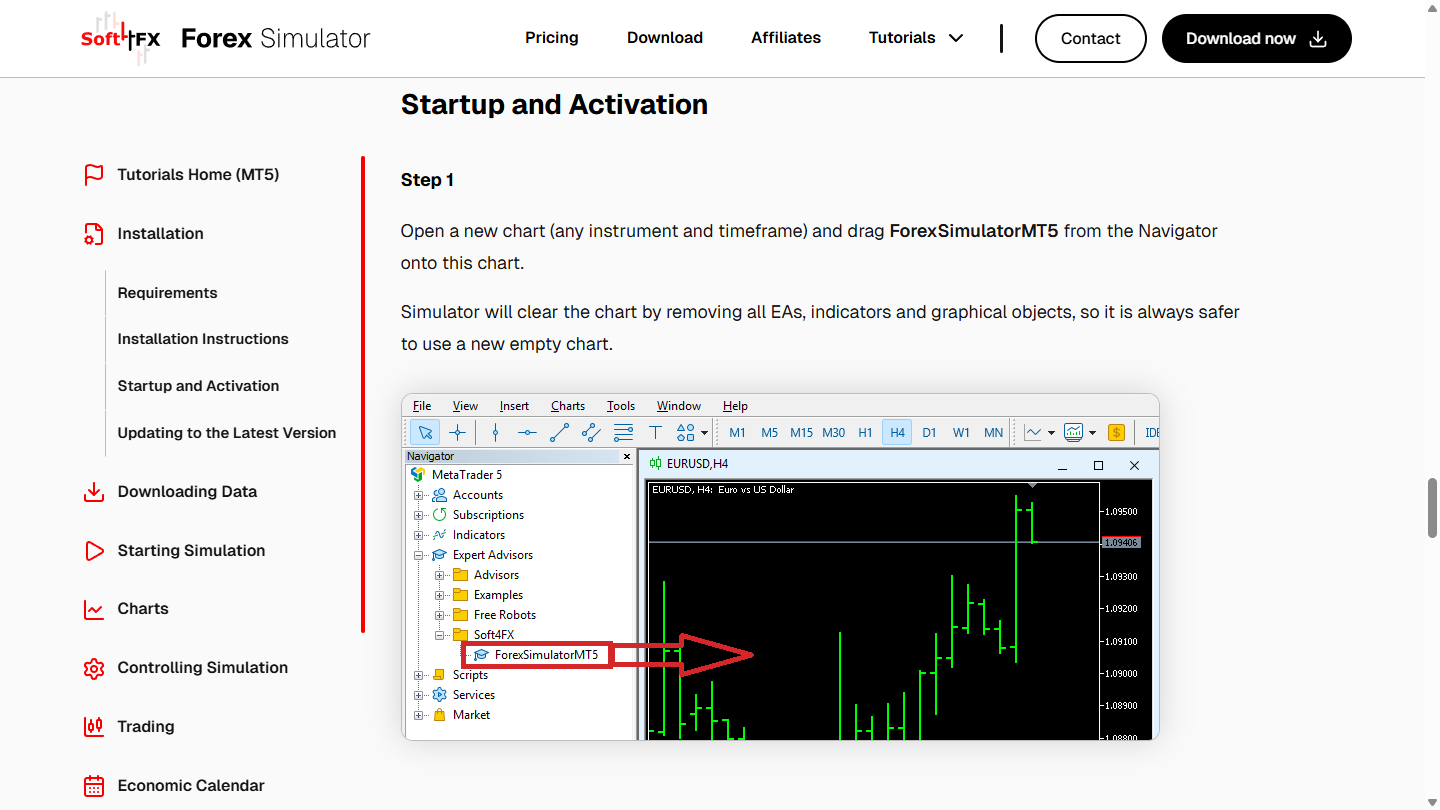
That is the stuck part. Leave the chart, and you leave the replay. Keep the chart, and you keep their host: MetaTrader's Expert Advisors list, MetaTrader's DLL switch, and a save file that the same vendor says will not cross from MT4 to MT5.
BarionQuant is a Windows practice desk in its own window. It does not attach to a MetaTrader chart, so it has no DLL switch on that chart and no MT4 file versus MT5 file. It also does not run your Expert Advisors, and it is not MetaTrader's Strategy Tester. We are not a broker.
If the terminal is already the desk you trust, stay. The published article for that choice is “Leave MetaTrader to practice — or stay. How to choose vs Soft4FX.” If you have not installed MetaTrader and do not want to, the other article is “Skip the MetaTrader install — or accept it.” This page is only the case where the plugin is already the thing that feels stuck.
How to judge
Does the session live on a MetaTrader chart?
Their MT5 install page, Step 7, says: Go to Tools -> Options -> Expert Advisors in Metatrader's main menu and enable Allow DLL imports. Click OK. The dialog in that picture checks the box. MetaTrader's own line beside it says potentially dangerous, enable only for trusted applications. Step 6 above it is only “Open or restart Metatrader.”
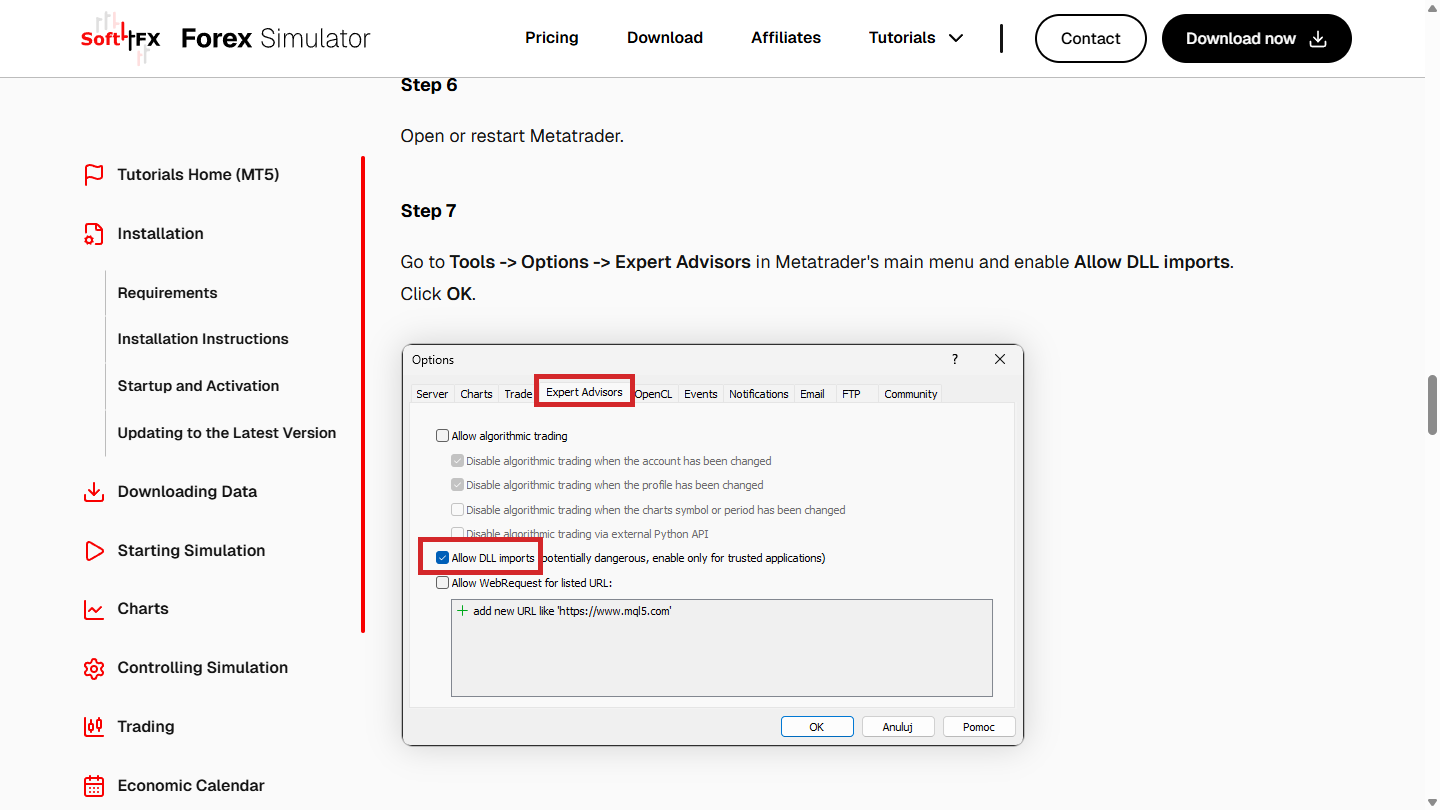
This page does not walk those clicks, and it does not tell you to turn the checkbox on. The picture is evidence that their replay is an Expert Advisor the terminal must agree to load. A practice window that is not hosted on that chart does not ask for that switch.
The drag picture is the other half of the same host. ForexSimulatorMT5 sits under Expert Advisors, and dropping it on the chart clears the other EAs, indicators, and objects. The plugin does not sit beside your template. It takes the chart.
What happens when that chart has focus?
On the controlling-simulation page, the Limitations block says hotkeys work only in simulator's windows, so any of them must be currently active. The next sentence says that if you click anywhere on the chart, hotkeys will stop working, and that if you click anywhere in the simulator, hotkeys will start working. Under that, the page says hotkeys are configurable, and to choose Simulation -> Options from the simulator's main menu.
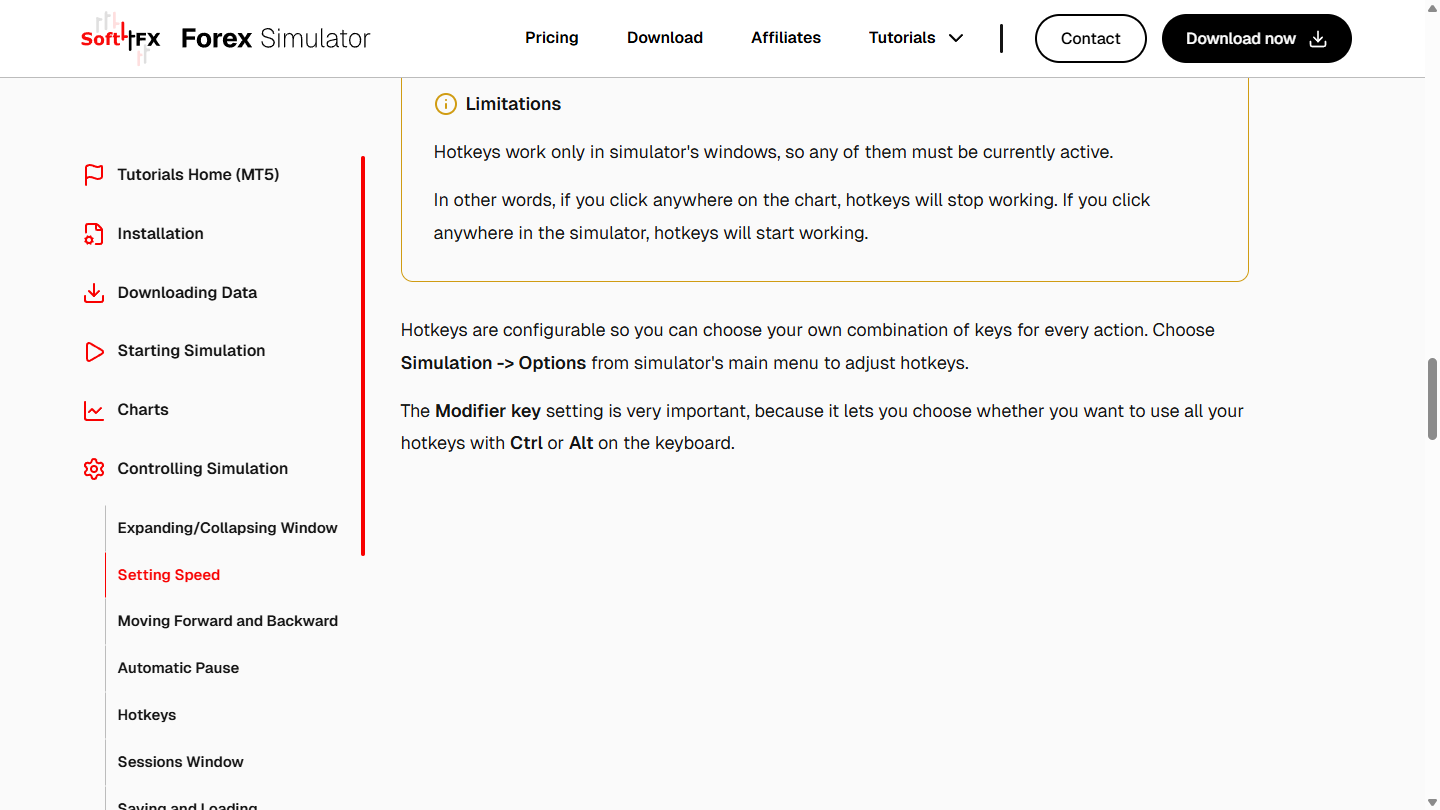
The friction is the host again. The chart you are trying to read is the same chart that, once clicked, quiets the replay keys. This page does not print their buy or sell shortcuts. Those keys are order entry, and this is not an order guide.
Can the saved session leave that terminal version?
Further down the same controlling page, the heading is “No backward compatibility.” The paragraph says the MT5 version cannot load a simulation saved in the MT4 version, or the reverse. You cannot start on MT4 and continue on MT5. MT4 simulations load only on MT4. MT5 simulations load only on MT5.
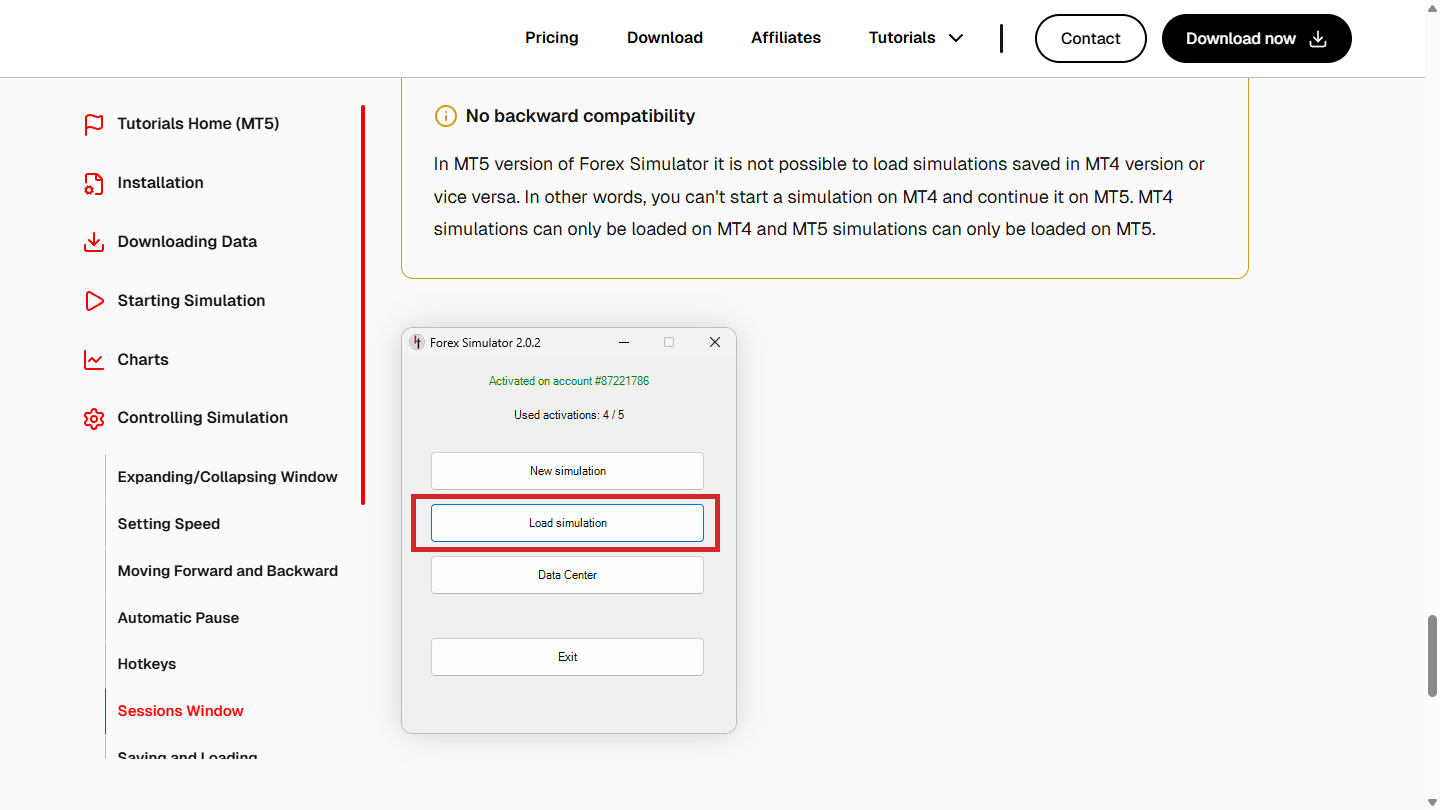
A save that cannot cross the two terminals is still stuck to a terminal. Switching MT4 for MT5, or the reverse, drops the file on the floor. That is a property of living inside the host, not a missing export button this page is going to invent.
What we do
The site is the method shelf. The desktop is where you rehearse a session without hanging it on a broker chart. Download is our Windows installer, then our sign-in, then Free EURUSD. A paid seat includes the handbook. Practice and judgment come first. The software is the desk.
We do not keep MetaTrader templates, indicators, or the chart objects their simulator clears. We do not ship a Mac build or a browser replay. We do not run the Expert Advisor you wrote, and we do not open Strategy Tester. If the job is to optimize a robot inside MetaTrader, neither this desk nor their simulator is that tester.
Honest comparison
What the pictures support. No prices on this page.
- Where the session lives. Soft4FX: ForexSimulatorMT5 dragged onto a MetaTrader chart. BarionQuant: a separate Windows window, not an Expert Advisor on their chart.
- What the chart focus does. Soft4FX: hotkeys run in the simulator windows and stop when the chart is clicked. BarionQuant: replay is not attached to that chart, so there is no DLL switch and no chart-focus rule to inherit.
- Saved work across terminals. Soft4FX: an MT4 simulation will not load on MT5, and the reverse. BarionQuant: one desktop build, not an MT4 file and an MT5 file.
- Other robots. Soft4FX, in the forum post below: manual training only, and EAs will not run. BarionQuant: we also do not run your Expert Advisors.
- What remains on the chart. Soft4FX: the simulator removes other EAs, indicators, and graphical objects from the chart it takes. BarionQuant: we do not host those templates.
- Platform and role. Both are Windows practice tools. Neither is a Mac app, a browser replay, or a broker.
Soft4FX, said plainly: if the chart, the indicators, and the terminal layout are why you practice, the plugin is the coherent host. Do not rip it out because a blog prefers another window.
BarionQuant, said plainly: we only win when the thing you want to leave is that host — the chart, the DLL switch, the focus rule, and the MT4-versus-MT5 save. We lose the templates that already live in MetaTrader.
On Forex Factory, post 14 of the thread Soft4FX Forex Simulator, 22 October 2016, the account konieczniak is labeled Commercial User. The answer in that post is: Forex Simulator is meant for training manual trading only. It is not a tool for backtesting Expert Advisors, so EAs will not work on the simulator. The question above it is about a tick-data robot. This page does not repeat that code.
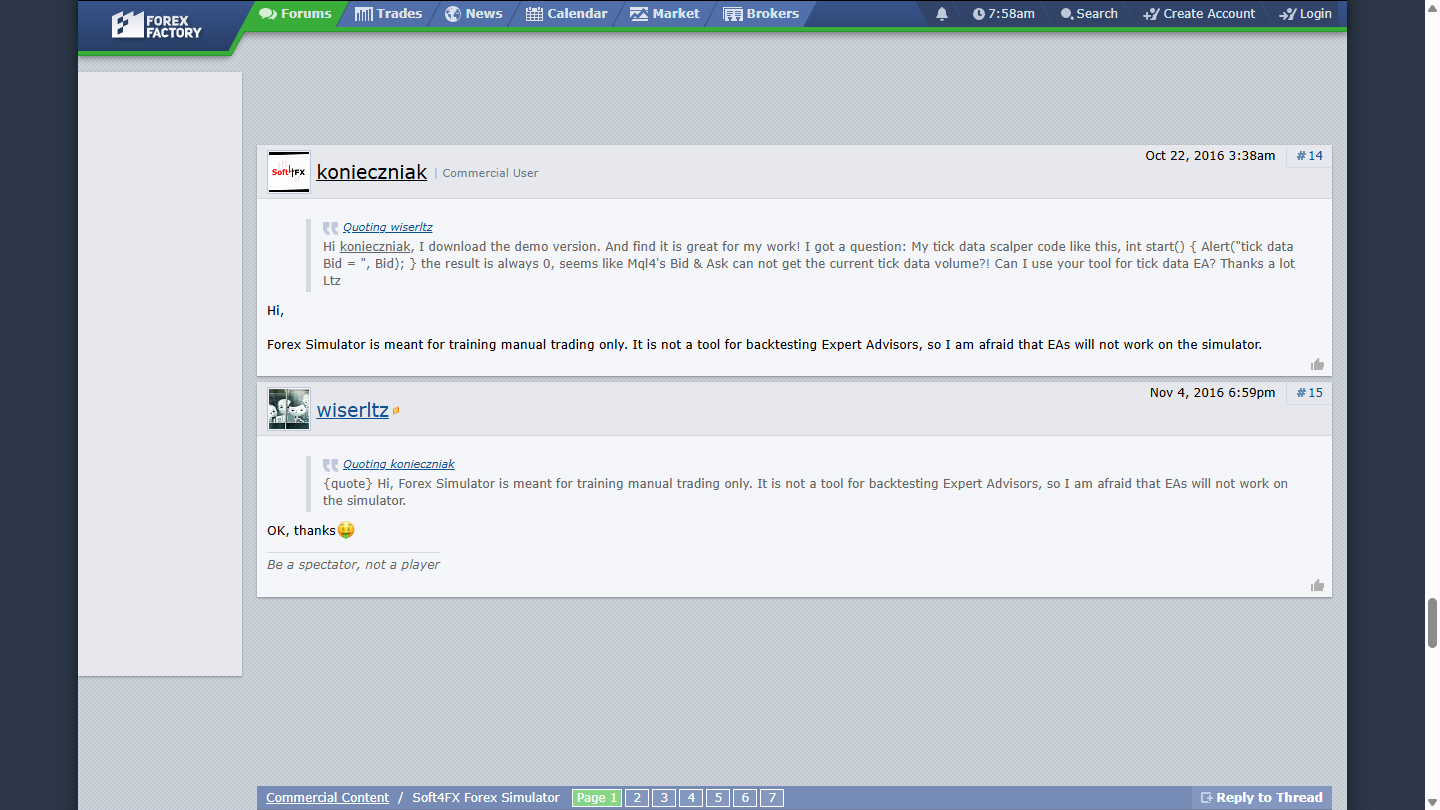
That sentence is from 2016, and it was still on the thread on 2026-09-21. It is not a 2026 feature list. It matches the install page we opened the same day: the thing you drag onto the chart is their Expert Advisor, and they have already said other Expert Advisors will not run there.
Who should skip
Skip us if:
- The MetaTrader chart is the layout you intend to keep.
- You need their tick archive, their templates, or a save that already lives in one MT version.
- You are on Mac and will not use Windows.
- You want a browser and no desktop install.
- You want this page to place an order, list their trade hotkeys, or tell you to enable DLL imports.
Skip Soft4FX if the requirement is a session that is not an Expert Advisor on a MetaTrader chart. Skip both of us if the job is Strategy Tester. A manual-only simulator and a practice desk are the same kind of refusal: neither one runs your robot.
FAQ
Should I enable Allow DLL imports?
No. Their Step 7 shows the checkbox, and the dialog's own note says potentially dangerous, enable only for trusted applications. This article does not turn that note into a procedure. If you do not trust an Expert Advisor with that switch, do not follow their install page. Use a desk that is not hosted there.
Will BarionQuant run the Expert Advisor their simulator will not?
No. We do not run your Expert Advisors, and we do not open MetaTrader's Strategy Tester. Their commercial-user post already says the simulator will not. Moving the same robot onto our window is not a feature on this page.
If I like the MT chart, is this telling me to leave?
No. Stay when the chart is the point. Use “Leave MetaTrader to practice — or stay. How to choose vs Soft4FX.” for that decision, and “Skip the MetaTrader install — or accept it.” when the install itself is what you are refusing. This page is the narrower stuck feeling: replay that only lives on their chart.
Next step
Download the Windows build if the chart-hosted plugin is the constraint you want to leave. Open Pricing if you want the seat after that. If the terminal stays, stay with it. Do not enable DLL imports, and do not turn security off, because this article asked you to.
Educational content. BarionQuant is not a broker and does not provide investment advice or trade signals. Past practice results do not predict future outcomes. The Soft4FX MT5 pages and the Forex Factory post were read on 2026-09-21.
Related reading

Skip the MetaTrader install — or accept it
6 min
Soft4FX starts after MetaTrader is already on the machine. If you will not install that terminal, you need a different desk — not a better plugin.
Leave MetaTrader to practice — or stay. How to choose vs Soft4FX
8 min
Stay in MetaTrader if the terminal is the point. Leave it if you want a separate training desk and a handbook, not another plugin.